


10 Tricks to Speed Up Windows
If you’re planning to buy Windows VPS or improve your system performance, understanding how to speed up Windows is essential. A slow PC or server can reduce productivity, whether you’re working, gaming, or managing remote tasks. In this guide, we’ll cover practical methods to speed up Windows and help you get better performance from your system.
There are some effective ways and tricks to speed up Windows 10 and 11:
- Taming the Startup Programs.
- Saying Goodbye to Transparency.
- Finding the Power Balance.
- The Classic Restart.
- Manage Disk Space.
- Update Windows.
- Upgrading Hardware.
- Let Windows Troubleshoot the Slowdown.
- Scan for Malware.
- Optimize Server Processes.
Tested Tricks to Speed Up Windows Server 10 and 11
The tricks below help you have a faster Windows 10 & 11 and stop facing low performance on your Server. USA Windows vps
In the end, you must experience a smooth and efficient system running.
Also, you can buy Windows VPS, a permanent solution that gives you complete control over startup programs and consistent top performance.
1. Taming the Startup Programs
Too many programs set themselves to launch at startup, overloading your system from the get-go.
This can significantly slow down your boot time.
To Fix it:
- Open the Task Manager (search for it in the Start menu).
- Go to the “Startup” tab and Disable programs you don’t need immediately when you boot up.
- This frees up valuable resources for a smoother startup.

2. Saying Goodbye to Transparency
The transparency feature that makes your Start menu, taskbar, and Action Center look sleek can also slow down your system, Windows ,RDP particularly on older machines.
To Fix it:
Similar to visual effects, you can disable transparency:
- Go to Settings > Personalization and choose “Colors” on the left.
- Under “Transparency effects,” toggle the switch to “Off.”
- This will remove the translucent look, but potentially improve performance on older PCs.
3. Finding the Power Balance
Windows has a built-in power saver plan that reduces performance to conserve battery life (on laptops) or energy (on desktops).
While this saves power, it can make your computer feel sluggish.
To Fix it:
- Go to Power & battery settings.
- You’ll see different power plans available.
- Choose “High performance” for maximum speed, but be aware that this will also use more power.
- For a balance between performance and power consumption, consider the “Balanced” setting.
4. The Classic Restart
It might sound simple, but restarting your computer can be surprisingly effective.
When you reboot, you clear out temporary files and any lingering processes that might be slowing things down.
It’s a quick and easy way to give your system a fresh start.
5. Manage Disk Space to Improve Windows Server Performance
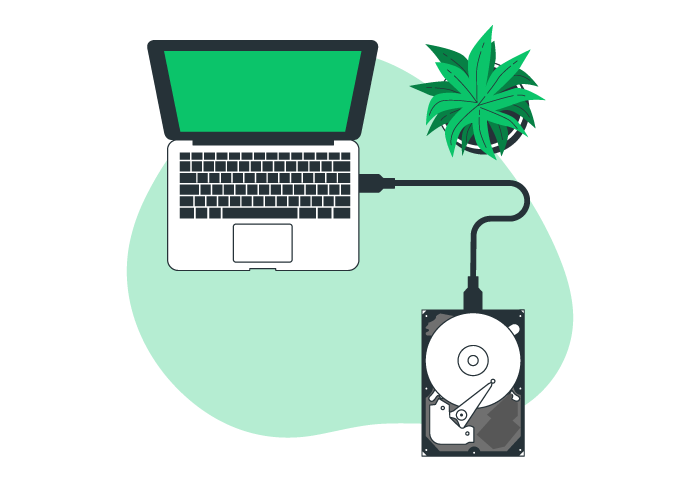
Managing disk space is essential for maintaining optimal performance on a Windows Server. Unlike personal computers, servers handle large volumes of data such as logs, backups, and applications, which can quickly consume storage and impact speed.
Proper disk space management helps improve performance in several ways:
Reduces Disk Fragmentation
Over time, frequent file creation and deletion can fragment the hard drive, slowing down data access. Freeing up disk space allows the system to reorganize files more efficiently, resulting in faster read and write operations.
Improves System Responsiveness
When disk space is low, the system struggles to manage resources effectively. Removing unnecessary files, temporary data, and outdated backups ensures that essential applications run smoothly and without delays.
Enhances Performance During Critical Tasks
Servers often handle demanding operations such as database queries and file transfers. A cluttered disk can slow down these processes. By freeing up space, you ensure the server has sufficient resources to perform these tasks efficiently.
6. Update Windows to Maintain VPS Performance
Keeping your Windows Server updated is critical if you plan to buy a Windows VPS and want consistent speed, stability, and security.
Regular updates play an important role in maintaining overall server performance. Here’s how they help:
Patch Performance Issues
Microsoft frequently releases updates to fix bugs and system inefficiencies. Installing these updates helps eliminate performance bottlenecks and improve server responsiveness.
Improved Security Measures
Security is a major concern for any VPS environment. Updates include patches that protect your server from malware, vulnerabilities, and unauthorized access. A secure system also runs more efficiently by preventing malicious processes from consuming resources.
Compatibility and Driver Updates
Windows updates often include improved drivers and compatibility fixes. These updates ensure your server works smoothly with hardware and applications, reducing crashes and performance issues.
7. Upgrade Hardware to Improve Windows Server Performance
Upgrading hardware is one of the most effective ways to improve the performance of a slow Windows Server. It directly removes system bottlenecks and helps your server handle demanding tasks more efficiently.
Boost RAM Capacity
Many server operations, such as running virtual machines or handling large databases, require significant memory.
Increasing your RAM allows the server to process multiple tasks at the same time without lag. This results in smoother performance, faster response times, and better overall stability.
Switch to SSD Storage
Replacing a traditional HDD with a Solid State Drive (SSD) can deliver a major speed boost.
SSDs use flash memory instead of mechanical parts, which means faster data access and reduced load times. This leads to quicker boot times, faster application performance, and a noticeable improvement in overall server speed.
8. Let Windows Troubleshoot the Slowdown
Windows includes a built-in troubleshooter designed to diagnose and resolve performance issues, saving you time and effort. However, while this tool can be helpful, it may not address every problem. If performance issues continue, consider exploring more specific usa windows vps troubleshooting methods tailored to the symptoms you’re experiencing.
To use this Method:
- Open the Control Panel.
- Navigate to System and Security.
- Find Security and Maintenance.
- Click on Troubleshooting.
- Run Maintenance Tasks.
This specific option instructs the troubleshooter to identify performance-related issues.
The troubleshooter will scan your system, looking for things like unused files, outdated shortcuts, or other potential bottlenecks.
Once it finishes, it will present you with a report detailing any problems it finds.
You’ll then have the option to let the troubleshooter fix them automatically, giving your system a potential performance boost.

9. Scan for Malware
Regularly scanning for malware on a Windows Server is essential for maintaining speed and security.
Here’s why:
Malware Removal: Malicious software often drains system resources by running hidden processes or transmitting data in the background. Conducting regular scans and removing malware can free up these resources, resulting in improved system performance.
Preventative Maintenance: Malware can damage vital system files or interfere with essential server operations. Routine scans help detect and eliminate threats early, preventing performance degradation and safeguarding sensitive data.
10. Optimize Server Processes
Identify resource-intensive applications or services that might be bottlenecking performance.
Tools like Task Manager can help pinpoint these processes.
Stopping unnecessary services or adjusting USA Windows VPS resource allocation for specific applications can free up valuable CPU, memory, and network bandwidth, leading to a smoother server experience.
What are the Primary methods to speed up Windows?
- Restart Regularly.
- Disable Startup Programs.
- Clean Up Disk Space.
- Consider Disabling Hibernation.
Does Windows Update help speed it up?
Yes. Updates often include performance improvements and bug fixes that can significantly speed up your system.
Does More RAM Help Speed?
Yes, often. Low RAM can bottleneck performance. Adding more allows your system to run more programs smoothly.
Also, upgrading to an SSD is one of the best ways to improve overall system speed.
How to Manage Slow Startup?
Review the programs configured to launch at startup and disable those that are unnecessary. Perform a clean boot windows rdp by searching for “msconfig” in the Start Menu to help diagnose startup problems.
How to solve the Slow Programs issue?
Enhancing the performance of Windows 10 or 11 can significantly improve your computing experience, making your system faster, more responsive, and efficient. Additionally, running a malware usa windows vps scan is a crucial step, as malicious software can often hinder your system’s speed.
Conclusion
Enhancing the performance of Windows 10 or 11 can significantly improve your computing experience, making it quicker, more responsive, and more efficient. By applying the methods discussed above, you can easily speed up Windows and reduce common performance issues.
Simple steps like managing startup programs, updating your system, freeing up disk space, and scanning for malware can make a noticeable difference. These optimizations not only improve speed but also help maintain long-term system stability.
However, if you’re looking for consistent high performance without relying on manual optimizations, it may be a smart decision to buy Windows VPS. A Windows VPS offers dedicated resources, better control, and reliable performance compared to a regular system.
When you buy Windows VPS hosting online, you get the advantage of faster processing, remote accessibility, and the ability to handle demanding tasks without slowdowns. Choosing the best Windows VPS provider ensures that your system remains optimized, secure, and ready for professional use.
In the end, whether you choose to optimize your local system or buy Windows VPS, the goal is the same: a faster, smoother, and more efficient Windows experience.