


If Chrome suddenly shows “This site can’t be reached” along with ERR_CONNECTION_REFUSED, your browser tried to reach the website but got turned away before a connection could even open. It’s one of the most common Chrome errors, and the good news is that it’s usually fixable in a few minutes once you know where to look.
This guide breaks down exactly what ERR_CONNECTION_REFUSED means, why it happens, and the fastest ways to fix it — whether the problem sits on your device or on the website’s server. You don’t need any technical background to follow along; each fix below takes just a couple of minutes to try.
What Does ERR_CONNECTION_REFUSED Actually Mean?
Technically, ERR_CONNECTION_REFUSED shows up when your browser sends a connection request and the target server responds by actively rejecting it, instead of simply staying silent. That’s different from a timeout, where the server never replies at all. A refusal means something on the other end — a firewall, a security rule, or an offline service — is deliberately closing the door.
This exact error code is specific to Chrome. Firefox reports the same underlying issue as “Unable to connect,” and Edge shows its own version of the message. But regardless of the wording, the root cause is the same: the connection never got a chance to complete.
Common Causes of ERR_CONNECTION_REFUSED
The reasons behind this error usually fall into two buckets — problems on your side, and problems on the website’s side.
On your device or network:
- Corrupted browser cache or cookies
- Firewall or antivirus software blocking the site
- Incorrect proxy or VPN configuration
- Outdated or misconfigured DNS settings
- A faulty or outdated browser extension
- Router or modem glitches
On the website’s server:
- The server is down, overloaded, or under maintenance
- Misconfigured server or hosting settings
- The server’s firewall is blocking your IP address or region
- An expired or invalid SSL certificate
- Incorrect DNS records for the domain
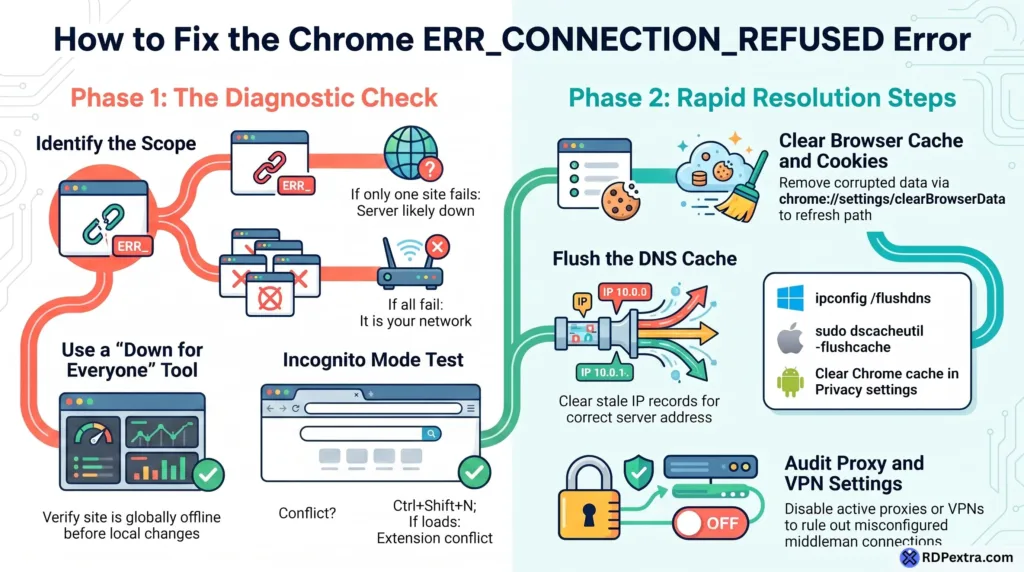
A quick way to tell the two apart: if the error shows up on every website you visit, the cause is almost always on your side — your network, browser, or security software. If it only happens on one specific site while everything else loads normally, the server behind that site is the likely culprit. Knowing which side the problem is on saves time, because there’s no point resetting your network if the website itself is offline.
How to Fix ERR_CONNECTION_REFUSED on Chrome
Work through these steps in order — they’re arranged from quickest to most involved.
1. Confirm the website is actually online. Before touching any settings, check whether the site is down for everyone using a free tool like “Down for Everyone or Just Me.” If it’s down for all visitors, the fix is out of your hands — you’ll need to wait or contact the site owner.
2. Clear your browser cache and cookies. Corrupted cache data is one of the most frequent causes of ERR_CONNECTION_REFUSED. Go to chrome://settings/clearBrowserData, select cookies and cached images, and clear the data.
3. Flush your DNS cache. Open Command Prompt as administrator and run:
ipconfig /flushdns
ipconfig /renew
On Mac, use sudo dscacheutil -flushcache in Terminal. This clears out any stale IP address records your system may have stored for the site, which is a common hidden cause of connection refusals after a server migrates hosts.
4. Check your proxy and VPN settings. A misconfigured or offline proxy will get every request rejected. Go to Settings > Network & Internet > Proxy and make sure “Use a proxy server” is off, unless you specifically need one. If you’re on a VPN, try disconnecting it temporarily. If you do rely on a proxy for privacy or work, a poorly maintained free or shared one is often the actual cause of this error — a properly configured residential ISP proxy avoids these random connection drops.
5. Temporarily disable your firewall or antivirus. Security software sometimes blocks legitimate sites by mistake. Pause it briefly and reload the page — if it works, add the site to your software’s allowlist and turn protection back on.
6. Open the site in Incognito mode. Press Ctrl + Shift + N. Chrome disables extensions by default in this mode, so if the page loads here, one of your extensions is the culprit. Disable them one at a time in chrome://extensions to find the problem one.
7. Restart your router or modem. Unplug it for 30 seconds, plug it back in, and give it a couple of minutes to fully reconnect before retrying.
8. Switch your DNS server. Change your network’s DNS to Google’s public DNS (8.8.8.8 and 8.8.4.4) through your Wi-Fi adapter settings — this bypasses ISP-side DNS problems.
9. Reinstall Chrome as a last resort. If nothing else works, uninstall Chrome completely, restart your device, and install the latest version from Google’s official site.
On Android, the same principles apply: clear Chrome’s cache from Settings > Privacy and security, reset network settings under System > Reset options, and try switching between Wi-Fi and mobile data to isolate whether the issue is your connection or the site itself.
How to Prevent ERR_CONNECTION_REFUSED in the Future
A few small habits go a long way toward keeping this error from coming back:
- Clear your browser cache periodically instead of letting it grow indefinitely.
- Keep Chrome and your operating system updated, since older versions are more prone to network stack bugs.
- Review your installed extensions every few months and remove anything you no longer use.
- Stick to a reliable DNS provider, and avoid stacking multiple VPNs or proxies at once.
- Use a stable residential IP instead of rotating free proxies, which are far more likely to get flagged and refused by servers.
- Restart your router occasionally, even if nothing seems wrong — it clears minor glitches before they cause errors.
None of these takes more than a few minutes, but together they cut down how often you’ll see ERR_CONNECTION_REFUSED or similar connection errors in Chrome.
When the Problem Is on the Website’s Server
If you’ve gone through every step above and the error still appears — but only on one specific website while everything else loads fine — the issue almost certainly sits with that site’s server. Common triggers include server downtime, an overloaded host, or a firewall rule blocking visitors from your region. In this case, there’s nothing left to fix locally; reach out to the website owner or hosting provider and wait for them to resolve it. If you’re the one managing the website, this is also a good moment to review your hosting — an overloaded or budget host is a common reason visitors see ERR_CONNECTION_REFUSED, and moving to a reliable dedicated server usually eliminates it.
Still Seeing net::ERR_CONNECTION_REFUSED?
If the net::ERR_CONNECTION_REFUSED message keeps appearing across multiple websites and devices on the same network, the problem is likely broader than one site or one browser. At that point, contact your ISP to rule out regional blocks or outages, test the same URL on mobile data instead of Wi-Fi, or ask a network specialist to check for deeper firewall or DNS conflicts. A VPN can also help temporarily if a specific site is blocking your region. If the error only follows you on public Wi-Fi, the network itself may be filtering sites, and mobile data is often the fastest workaround. If a site is blocking your region specifically, browsing through a USA RDP with a dedicated local IP is a more stable long-term fix than switching networks every time.
Final Thoughts
ERR_CONNECTION_REFUSED looks alarming, but it’s rarely a sign of anything serious. In most cases, clearing your cache, checking your proxy settings, or flushing DNS resolves it within minutes. If the error persists only on one website, the problem is on their end, not yours — and patience is the only real fix. And if you’d rather skip the local troubleshooting altogether, working from a pre-configured RDP gives you a clean, stable connection without the network guesswork. Keep this guide handy the next time Chrome refuses to connect, and you’ll know exactly where to start.
Frequently Asked Questions
No. A 404 or 403 error means the server received your request and responded with an error code. ERR_CONNECTION_REFUSED means the connection was rejected before your request ever reached the server, so no HTTP status code is returned at all.
If your VPN or proxy server is offline, misconfigured, or blocked by the destination website, Chrome shows ERR_CONNECTION_REFUSED because the connection never completes. Disconnecting the VPN or checking your proxy settings usually fixes it right away.
Try opening a few other websites. If none of them load, the issue is with your device or network. If ERR_CONNECTION_REFUSED appears only on one specific site while everything else works fine, the problem is almost certainly on that website’s server.
Not necessarily. Your internet connection can be working perfectly while a specific server refuses the connection. If other websites load normally, ERR_CONNECTION_REFUSED is a site-specific or browser-setting issue, not a sign your internet itself is broken.
