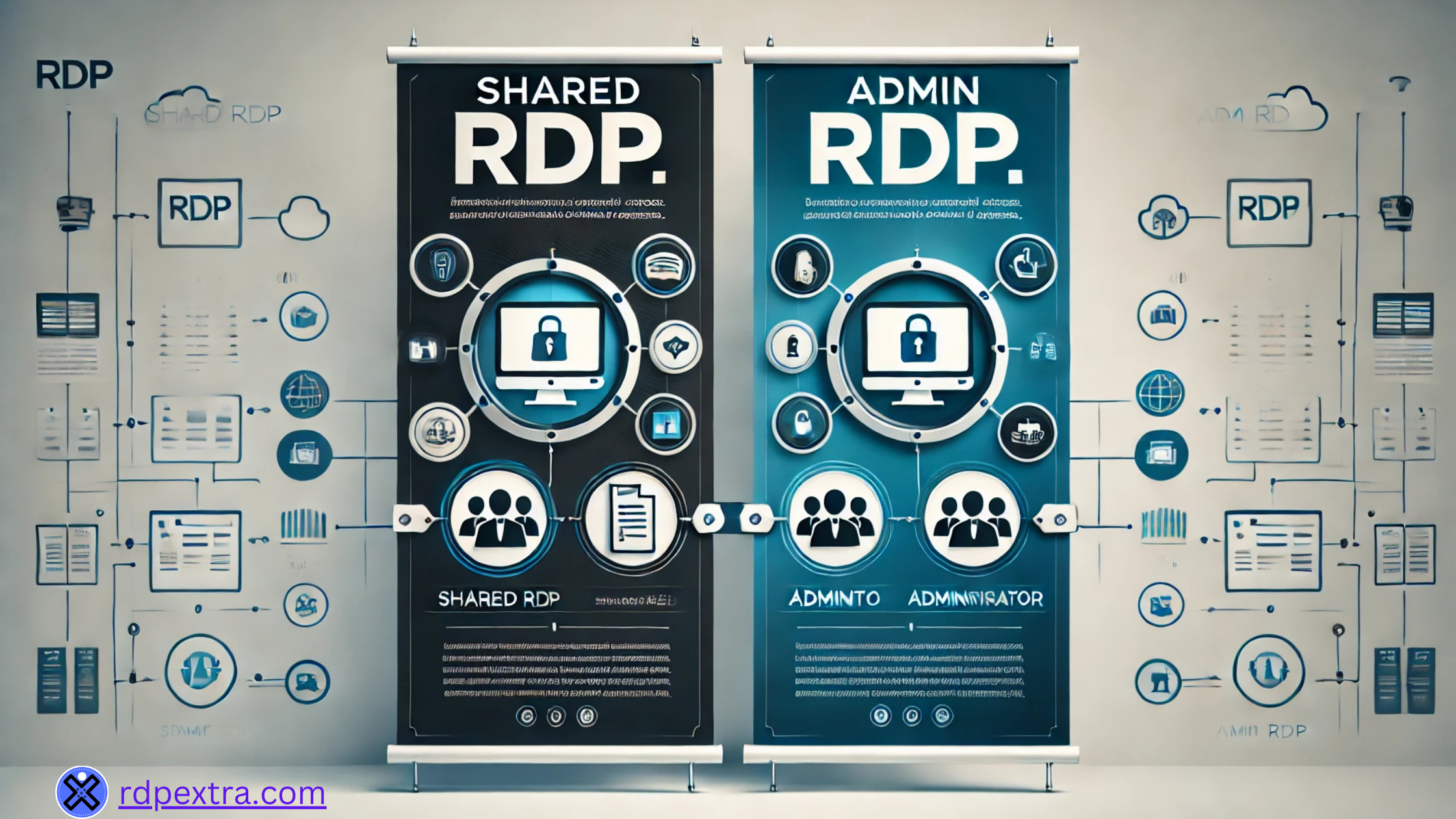


“Shared RDP” and “Admin RDP” describe two different arrangements of the same underlying protocol, and the difference comes down to one thing: how many people have real control over the machine you’re connecting to. Get this wrong and you either overpay for isolation you didn’t need, or you end up sharing a server with strangers whose activity can slow down or destabilize your session. Here’s the actual mechanism behind the two, not just the marketing terms.
What RDP Actually Is
Remote Desktop Protocol is the transport — the wire format that streams a Windows session’s screen to you and your input back to it. It doesn’t decide how many people share the machine on the other end; that’s a licensing and configuration layer built on top, called Remote Desktop Services (RDS) [1]. RDS supports both session-based multi-user desktops (many people, one server, isolated sessions) and single-user models [1] — “Shared RDP” and “Admin RDP” are essentially the commercial names for picking one end of that spectrum or the other.
The Real Mechanism: Two Free Connections vs. Licensed Multi-User
This is the part most explanations skip. Windows Server ships with Remote Desktop for Administration built in, free, for exactly two simultaneous connections — specifically so admins can manage a server remotely without extra cost [2]. To let more than two people use a server at once, you need to install the full RD Session Host role and license every additional user or device with a Remote Desktop Services Client Access License (RDS CAL) [2][3]. That single licensing rule is the entire reason “Shared RDP” and “Admin RDP” exist as separate products: a shared server is running the fully-licensed multi-user configuration and splitting the cost of those CALs across many customers; an Admin RDP server is just you, using the free two-connection administrative mode on a machine nobody else touches.
Shared RDP vs. Admin RDP, Side by Side
| Factor | Shared RDP | Admin RDP |
|---|---|---|
| Who else is on the server | Other customers, each with their own standard-user session | Nobody — the whole server is yours |
| Your permission level | Standard user — no install rights, no service control | Full local administrator |
| Underlying licensing | RD Session Host + RDS CALs, cost split across users [2][3] | Built-in 2-connection admin mode, no CALs needed [2] |
| Resource isolation | Shared CPU/RAM/disk — another user’s heavy load affects you | Fully isolated — your usage only |
| Typical cost | Lower — cost split across many users | Higher — you’re paying for the whole machine |
| Best for | Lightweight, standard-permission tasks: browsing, a single app, basic automation | Anything needing installs, service changes, admin-level automation, or guaranteed resources |
When Shared RDP Actually Makes Sense
Shared RDP isn’t a lesser product — it’s the right tool when you don’t need administrator rights at all. Standard-permission tasks like browsing, running a pre-installed application, checking email, or basic single-account automation work fine under a standard user session, and splitting one licensed, multi-user host across many customers is exactly what keeps the price low. The tradeoff you’re accepting is resource sharing: if another user on the same host runs something CPU-heavy, your session can slow down too, since you’re all drawing from the same pool [1].
When You Actually Need Admin RDP
Admin RDP is the right call the moment your task requires anything a standard user account can’t do: installing software, changing a Windows service, opening firewall ports, running multiple automation instances that need their own isolated environment, or anything where “another user’s activity slowed me down” is not an acceptable outcome. You’re paying for the whole machine’s worth of resources and Windows Server’s built-in two-connection administrative mode, dedicated to you [2] — no CAL cost to share, but no other users to share the hardware cost with either.
Which One Do You Need?
Frequently Asked Questions
Can I install software on Shared RDP?
No — Shared RDP sessions run under standard user permissions, which don’t include install rights. That’s not a policy choice by the provider; it’s the actual permission boundary between a standard user and a local administrator on Windows.
Why is Shared RDP cheaper than Admin RDP?
Because the licensing and hardware cost of one Remote Desktop Session Host server, plus its RDS CALs, is split across every customer on that server [2][3]. Admin RDP puts the full cost of one machine on one customer.
Will other users on a shared server slow down my session?
They can. A Shared RDP host’s CPU, RAM, and disk are pooled across every user’s session, so another customer’s heavy workload draws from the same resources yours does [1]. Admin RDP avoids this entirely since you’re the only user.
Is Admin RDP just Shared RDP with more permissions?
Not quite — it’s a different licensing mode entirely. Admin RDP typically runs on Windows Server’s built-in, free two-connection administrative mode rather than the licensed multi-user Session Host configuration Shared RDP depends on [2].
Conclusion
The split between Shared RDP and Admin RDP isn’t arbitrary marketing — it traces directly to how Windows Server licenses remote connections: two free administrative connections on a private machine, or a fully-licensed multi-user Session Host with its cost split across everyone using it. Pick Shared RDP for standard-permission tasks where cost matters more than isolation; pick Admin RDP the moment you need to install anything, change a service, or guarantee you’re not sharing resources with a stranger.
References
- Microsoft Learn — “Remote Desktop Services overview in Windows Server” (official) — learn.microsoft.com
- Wikipedia — “Remote Desktop Services” — en.wikipedia.org
- Microsoft Learn — “License Remote Desktop Services with Client Access Licenses (CALs)” (official) — learn.microsoft.com

[…] to know what is RDP and how remote desktop works.If you’re comparing options, here’s the full difference between shared RDP and admin RDP explained clearly.You can also read our ultimate guide to private RDP if you want deeper details […]